


مندرجات کا جدول
دکھائیں

گوگل ڈرائیو کے مشترکہ فولڈر کے ذریعے GSA SER لنک لسٹ تک رسائی کے لیے درج ذیل اقدامات پر عمل کریں۔ یہ اقدامات فرض کرتے ہیں کہ آپ نے آرڈر دیا ہے۔ ایشیا ورچوئل حل لنک کی فہرست۔.
- آرڈر کے صفحے پر، یقینی بنائیں کہ آپ ہمیں اپنا GMail ای میل اکاؤنٹ فراہم کرتے ہیں جسے آپ اپنی Google Drive کے لیے استعمال کرتے ہیں۔.
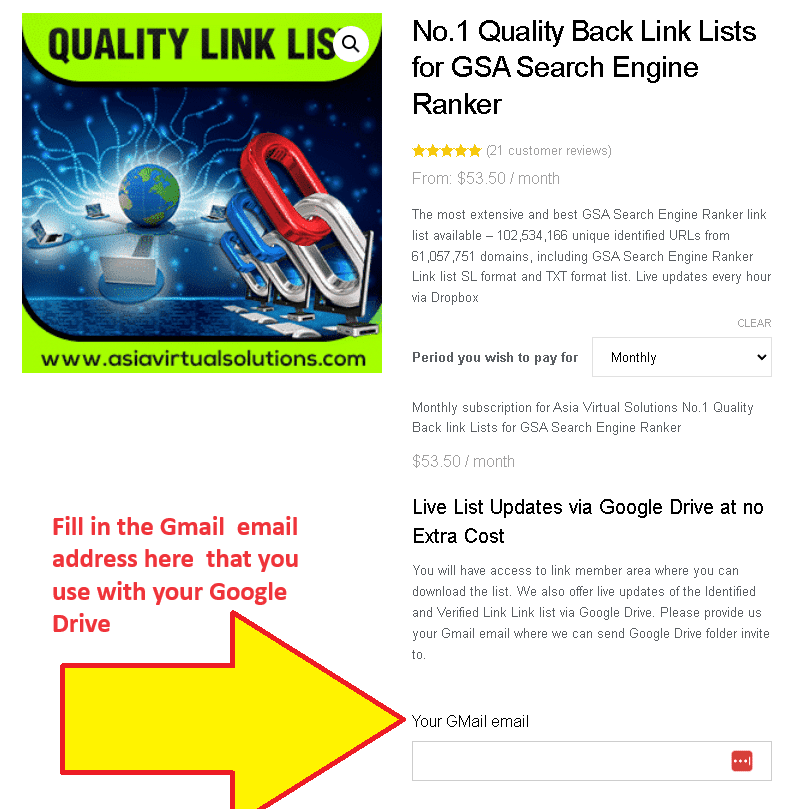
لسٹ آرڈر کا صفحہ لنک کریں - جی میل ایڈریس پُر کریں۔ اگر آپ کے پاس ابھی تک Google Drive سیٹ اپ نہیں ہے، تو براہ کرم ویڈیو کے بالکل نیچے، مزید نیچے کے مراحل کی پیروی کریں، جو کہ ایسا کرنے کا طریقہ بتاتا ہے۔.
- جب ہمیں آپ کا آرڈر موصول ہوتا ہے، تو ہم آپ کے فراہم کردہ Gmail ای میل کو دستی طور پر ان صارفین کی فہرست میں شامل کرتے ہیں جن کی فہرست کے ساتھ مشترکہ فولڈر تک رسائی ہے۔.
- آپ کو گوگل کی طرف سے ایک ای میل موصول ہوگی جس میں آپ کو مطلع کیا جائے گا کہ a فولڈر کا اشتراک کیا گیا تھا۔.
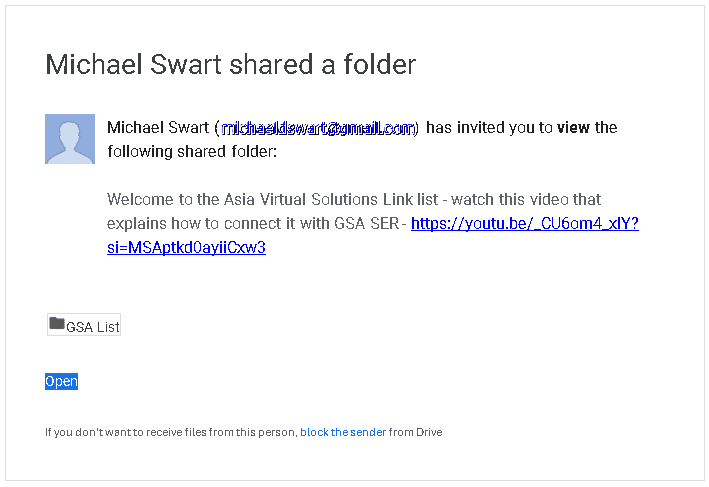
گوگل ڈرائیو مشترکہ فولڈر نوٹس - اپنی گوگل ڈرائیو پر جائیں - https://drive.google.com/ اور فولڈر پر جائیں "“میرے ساتھ اشتراک کیا گیا۔.
- ایک بار "میرے ساتھ اشتراک کردہ" فولڈر کے اندر، فولڈر کو تلاش کریں جسے کہا جاتا ہے: “"GSA لسٹ" اور اسے منتخب کریں۔ (اسے مت کھولو، اسے اٹھاؤ)
- اب GSA لسٹ فولڈر کو گھسیٹیں۔ اور اسے فولڈر میں چھوڑ دیں۔ میری ڈرائیو (بائیں طرف نیویگیشن میں)۔.
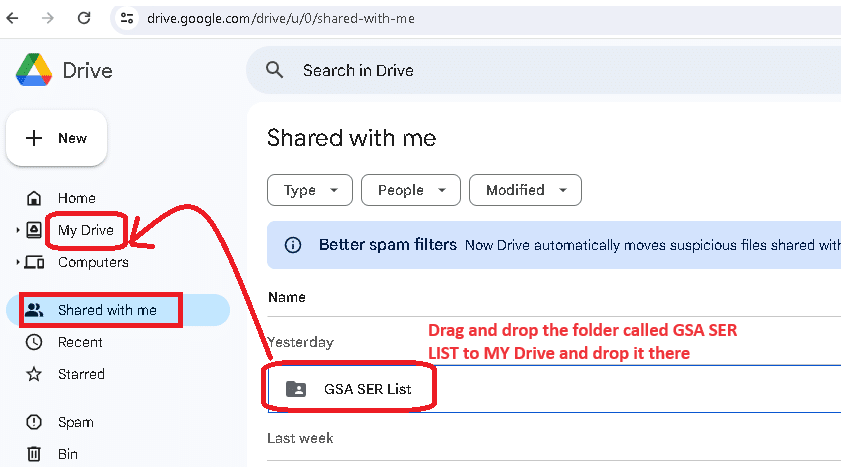
Google My Drive میں GSA SER فہرست فولڈر کو گھسیٹ کر چھوڑیں۔ - اگلا، جاؤ اور کافی پیو یا اپنے کتے کو چلائیں کیونکہ لنک کی فہرست کو اب ضرورت ہے۔ اپنے کمپیوٹر کے ساتھ مطابقت پذیر ہونے کا وقت یا وی پی ایس اس سے پہلے کہ ہم قدم نمبر کو جاری رکھیں۔ 8
- اگر پہلے ہی نہیں،, گوگل ڈرائیو ڈیسک ٹاپ ایپ انسٹال کریں۔ اپنے PC یا VPS یا دونوں پر، یہاں کے مراحل کی پیروی کریں۔
- اب گوگل مائی ڈرائیو ڈیسکٹو کھولیں۔p اپنے PC یا VPS پر اور پر جائیں۔ میرا ڈرائیو فولڈر۔.
- تلاش کریں۔ جی ایس اے کی فہرست فولڈر اس پر دائیں کلک کریں، منتخب کریں۔ آف لائن رسائی , ، اور پھر منتخب کریں۔ آف لائن دستیاب ہے۔.
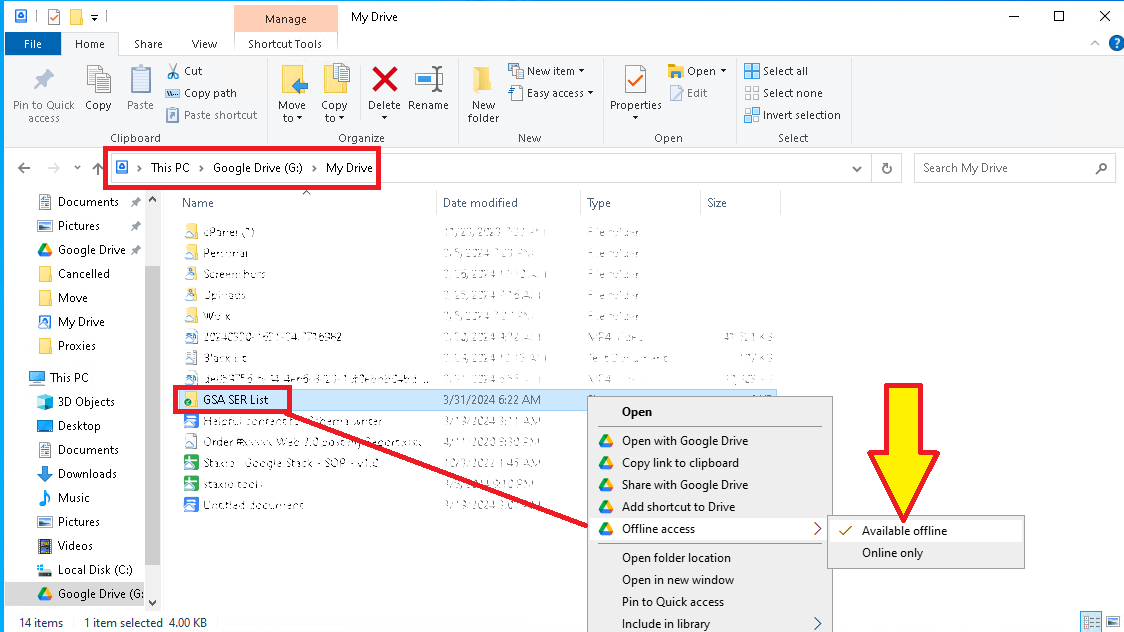
GSA SER فہرست فولڈر کو آف لائن دستیاب ہونے کے لیے سیٹ کریں۔ - GSA لسٹ فولڈر کھولیں۔ اپنے VPS یا PC پر اپنی Google Drive میں اور وہ ذیلی فولڈر منتخب کریں جسے آپ اپنے میں شامل کرنا چاہتے ہیں۔ GSA سرچ انجن رینکر. عام طور پر، آپ کو GSA لسٹ فولڈر میں تین فولڈر نظر آئیں گے۔ ایشیا ورچوئل حل: اصلاح شدہ شناخت شدہ، site_list-identified، اور site_list-verify۔.
- لنک کی فہرست کی فائلوں کو دیکھنے کے لیے فولڈر کھولیں۔ اب فولڈر کے فولڈ پاتھ کو دیکھیں اور اس پاتھ کو کاپی کریں۔.
- اپنا GSA کھولیں۔ سرچ انجن رینکر, ، پر جائیں۔ اختیارات ٹیب، اور پر کلک کریں پیشگی سیکشن
- اعلی درجے کے حصے میں، پر جائیں۔ سائٹ کی فہرست کا ٹیب.
- ایک بار سائٹ کی فہرست کے ٹیب کے اندر، آپ کو اگلے باکس کو چیک کرنے کی ضرورت ہے۔ اپنی مرضی کی فہرست
- اب کلک کریں۔ کنفیگر کریں۔ اپنی مرضی کی فہرست کے آگے اختیار۔.
- پر کلک کرنے کے بعد اپنی مرضی کی فہرست, ، منتخب کریں۔ فولڈر میں شامل کریں۔
- اپنے VPS یا PC اشتہار پر اپنے Google MY Drive فولڈر میں جائیں کھولیں۔ GSA لسٹ فولڈر۔.
- ایک بار جب آپ جی ایس اے لسٹ فولڈر کے اندر آجائیں تو، فہرست کے فولڈرز میں نظر آنے والی 3 فہرستوں میں سے کسی کو بھی کھولیں (آپٹمائزڈ آئیڈینٹیفائیڈ، سائٹ_لسٹ کی شناخت شدہ، اور سائٹ_لسٹ کی تصدیق شدہ)۔.
- آئیے فرض کریں کہ آپ لنک لسٹ فولڈر کو شامل کرنا چاہتے ہیں جسے کہا جاتا ہے: site_list- شناخت شدہ۔ بس فولڈر کھولیں، اور ایک بار کھولیں،, فولڈر کے نیویگیشن پاتھ کو کاپی کریں۔.
- اب فولڈر کا راستہ پیسٹ کریں۔ GSA سرچ انجن رینکر - جہاں آپ کے پاس فولڈر میں شامل کرنے کا آپشن ہے جس کا اوپر مرحلہ 12 میں ذکر کیا گیا ہے۔ جب آپ Add to Folder آپشن پر کلک کریں گے تو یہ پاپ اپ ہو جائے گا۔ بس اس فولڈر کے راستے کو پیسٹ کریں جو آپ نے کاپی کیا ہے اور اسے اس جگہ میں شامل کریں جو FOLDER کو دکھاتا ہے:
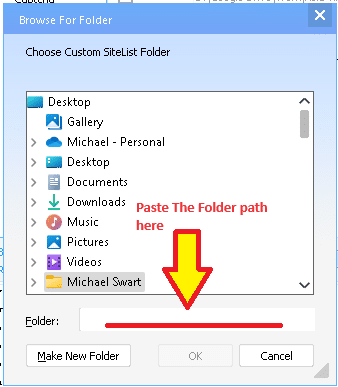
- فولڈر کا راستہ چسپاں کرنے کے بعد ٹھیک ہے پر کلک کریں۔.
- یہ آپ نے کیا ہے. گوگل مائی ڈرائیو فولڈر سے کوئی اور فولڈر بھی شامل کرنے کے لیے انہی مراحل کو مکمل کریں۔.











 English
  বাংলা
বাংলা  简体中文
简体中文  Nederlands
  Français
  Deutsch (Sie)
  हिन्दी
  Bahasa Indonesia
  Italiano
  日本語
日本語  한국어
한국어  Bahasa Melayu
  Português do Brasil
  Русский
  Español de México
  Tagalog
  ไทย
ไทย  Tiếng Việt
  اردو
اردو  Türkçe