



Do you run a lot of projects in GSA Search Engine Ranker? Then you have probably seen this message: “Out of Memory! Sorry but you use too much active projects or too many threads.” All your projects stop, and you have to start again.
The fix is already inside GSA SER. It is called the Scheduler, and most users never find it. In this guide we show you where it is, what every setting does, and the settings we use on our own GSA SER servers.
🎯 What Is the GSA SER Scheduler?
The GSA SER Scheduler runs your projects in groups instead of all at once. You choose how many projects run at the same time, for example 20. After a set time, for example 30 minutes, GSA SER stops those 20 and starts 20 different ones. It keeps rotating like this, day and night, until every project has had its turn.
The result: you can have 200 or even 1,000 projects in GSA SER, but only a safe number of them use memory at any moment.
⚠️ Why You Need It: GSA SER Is a 32-Bit Program
GSA Search Engine Ranker is a 32-bit application. A 32-bit program can only use about 3.5 GB of RAM. It does not matter if your VPS has 16 GB or 64 GB of memory. GSA SER cannot use more than that.
Every active project uses some of that memory. In the video we set 206 projects to Active and clicked Start. Within seconds GSA SER showed this error and stopped everything:
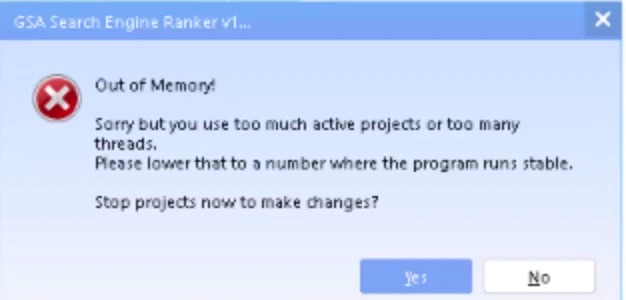
The Scheduler solves this. Instead of 206 projects at once, it runs 20 at a time and rotates through all of them. For other causes of this error, such as too many threads, see our guide GSA SER 사용 시 "메모리 부족" 오류를 방지하는 방법.
Only have a handful of projects? Then you don’t need the Scheduler. Just click Start. The Scheduler is for when you have more projects than GSA SER’s memory can handle.
🔧 Where to Find the Scheduler in GSA SER
The Scheduler is hidden behind the small arrow next to the 시작 button. Click the arrow and you see five options:
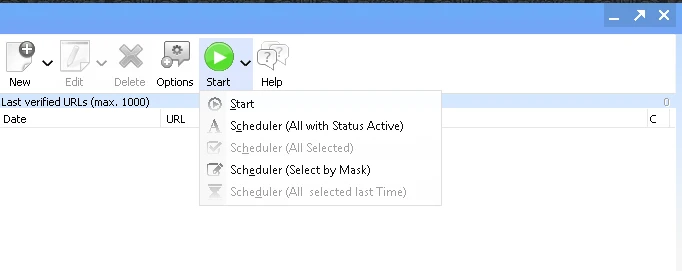
| 옵션 | 이 제품의 기능은 무엇인가요? |
|---|---|
| 시작 | Normal start. Runs every active project at the same time. No rotation. |
| Scheduler (All with Status Active) | Rotates through all projects with the status Active. |
| Scheduler (All Selected) | Rotates only through the projects you have selected (highlighted) in the project list. |
| Scheduler (Select by Mask) | Selects projects or groups whose name contains a word you type, for example “Tier 1”, then rotates through them. |
| Scheduler (All selected last Time) | Uses the same selection as the last time you ran the Scheduler. |
⚙️ The Scheduler Settings Explained
When you choose any Scheduler option, this window opens. Here is what each setting does.
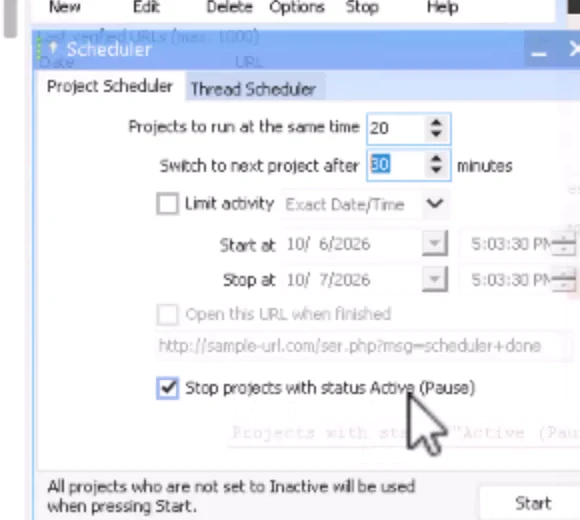
| 환경 | What it means |
|---|---|
| Projects to run at the same time | How many projects run together. This is your memory safety limit. |
| Switch to next project after … minutes | How long each group runs before the Scheduler switches to the next group. |
| Limit activity | Run only between a Start and Stop date and time, or daily between set hours. |
| Open this URL when finished | Optional. Opens a web address when the scheduled run ends. |
| Stop projects with status Active (Pause) | Respects each project’s own pause or stop limit. Always tick this. |
At the bottom of the window GSA SER reminds you: “All projects who are not set to Inactive will be used when pressing Start.” If no project is set to Active, you get the message “No project is set to Active” and nothing runs.
💡 Recommended Scheduler Settings
There is no single perfect number. It depends on your threads, your proxies and how heavy your projects are. These are the settings we start with on our own servers:
| Your situation | Projects at the same time | Switch after |
|---|---|---|
| 100 to 1,000+ projects, run them all | 20–30 | 30–60 minutes |
| Several projects for one website, natural link building | 1 | 15–60 minutes |
| Only your Tier 1 projects today | 20 | 15–30 minutes |
Don’t rotate too fast. A project needs time to find target sites, submit, and verify its links. If you switch every 5 minutes, most of that work never finishes. Give each group at least 30 minutes. One hour is fine.
Watch your threads. The Scheduler does not depend on any setting in the main Options. But your thread count decides how much each project can do. If GSA SER still struggles, lower the number of projects that run at the same time.
⚙️ How to Use Each Scheduler Mode
1. Run All Your Active Projects in Rotation
This is the mode most people need. Use it when you have more projects than GSA SER can run at once.
- Set all the projects you want to run to Active.
- Click the arrow next to Start and choose Scheduler (All with Status Active).
- 세트 Projects to run at the same time to 20 and Switch to next project after to 30 minutes.
- 진드기 Stop projects with status Active (Pause).
- 딸깍 하는 소리 시작.
The projects that are running now show in green in the project list. Memory use stays low. After 30 minutes the Scheduler picks 20 different projects at random. A customer of ours runs over 1,000 video projects this way. Every one of them gets its turn, but only 20 to 30 run at any moment.
2. Rotate Only the Projects You Select
Use this when you want to run a few specific projects, for example five projects that all promote the same website.
- Select the projects in the list (hold Ctrl and click each one).
- 선택하다 Scheduler (All Selected).
- Set it to run 1 project at a time and switch every 15–60 minutes.
- 딸깍 하는 소리 시작.
Now only one project builds links at a time, then the next one takes over, in a loop. Your website does not get a sudden flood of new links all at once, so the growth looks more natural. You can do the same with categories: promote one category for half an hour, then the next one.
3. Run Only Projects That Match a Word (Select by Mask)
Want to run only your Tier 1 projects today? You don’t have to set all the others to Inactive. Use Scheduler (Select by Mask).
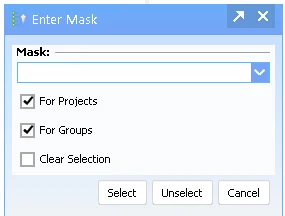
- 선택하다 Scheduler (Select by Mask).
- In the Mask field type the word to match, for example
1단계. - 진드기 For Projects. Untick For Groups if a group name might also contain “Tier 1” and you only want the projects themselves.
- 딸깍 하는 소리 선택하다. Every project with “Tier 1” in its name is now highlighted.
- Set how many to run at the same time and how often to switch, then click 시작.
This works best when you name your projects in a clear, consistent way, for example “Client name – Tier 1”, “Client name – Tier 2”.
4. Restart With the Same Selection (All selected last Time)
This option repeats the selection you used last time. It is useful after you restart GSA SER for an update, or after the program or your VPS was restarted. One click and the Scheduler continues with the same projects.
5. Run Only During Set Hours (Limit Activity)
진드기 Limit activity to run the Scheduler only between a start and stop time, or daily between set hours, for example 8 AM to 6 PM. Some users like this because the link building then follows normal working hours. We usually leave it off and let the Scheduler run around the clock.
💡 Tips and Common Mistakes
- Using the Scheduler with only a few projects and still letting them all run at the same time. If you have a handful of projects, just click Start.
- Rotating every 5 minutes. Projects need time to find targets, submit and verify. Use 30–60 minutes.
- Forgetting to set projects to Active. The Scheduler (All with Status Active) only uses Active projects. If none are Active, nothing runs.
- Not ticking “Stop projects with status Active (Pause)”. Without it, the Scheduler can keep running a project that already reached its submission or verification limit.
- The Scheduler picks projects at random. It does not follow the order of your list.
- The Scheduler does not know about tiers. It only sees projects. If tiers must run together, use Select by Mask or All Selected.
- Running projects show in green, so you can always see which group is working now.
GSA SER VPS 호스팅
Run GSA SER 24/7 on a VPS built for it
The Scheduler works best when GSA SER never stops. Our GSA SER VPS is ready to run, day and night.
See GSA SER VPS Plans❓ GSA SER Scheduler FAQ
How many projects can GSA SER run at the same time?
It depends on your threads and how heavy each project is, but 20 to 30 projects at the same time works well on most setups. GSA SER is a 32-bit program and can only use about 3.5 GB of RAM, so more projects at once quickly leads to the “Out of Memory” error. Use the Scheduler to rotate through the rest.
Why does GSA SER say “Out of Memory” when my VPS has lots of RAM?
Because GSA SER is a 32-bit application. A 32-bit program can only use about 3.5 GB of memory, no matter how much RAM the VPS has. Adding more RAM does not help. Running fewer projects at the same time does, and the Scheduler does that for you automatically.
How often should the Scheduler switch projects?
Every 30 to 60 minutes. Each project needs time to search for targets, submit, and verify its links. If you switch every 5 minutes, much of that work is lost. For natural link building to a single website, 15 to 60 minutes with one project at a time works well.
Does the Scheduler run my tiers together?
No. The Scheduler only sees projects and picks them at random. It does not know which projects belong to the same tiered campaign. If you want to run only one tier, use Scheduler (Select by Mask) with a word like “Tier 1”, or select the projects yourself and use Scheduler (All Selected).
Do I need the Scheduler if I only have a few projects?
No. If GSA SER can run all your projects at once without memory problems, just click Start. The Scheduler is for users with many projects, for example 100 or more, where running them all together is not possible.
What does “Stop projects with status Active (Pause)” do?
It makes the Scheduler respect each project’s own limits. For example, if a project is set to stop after 600 verifications, the Scheduler will not keep running it once it reaches that number, even though its status is still Active. We recommend you always tick it.









 English
  简体中文
简体中文  Deutsch (Sie)
  Bahasa Indonesia
  Italiano
  日本語
日本語  한국어
한국어  Português do Brasil
  Русский
  Español de México
  ไทย
ไทย  Tiếng Việt
  Türkçe